
Versioning
| Version | Chapter | Changes | Date |
|---|---|---|---|
| 1.0 | Initial creation of the manual | 20.05.2025 |
1 Pharma Articles
The article list in the Pharma area (for human and veterinary medicines, HAM and TAM) is based on the Open Government Data (OGD) from Swissmedic, which are updated in SIMIS on the 1st of each month. Subsequently, the GTIN can be entered for articles and the trade status can be adjusted.
- Swissmedic provides article data in the OGD file, after the date of a corresponding decision, at the earliest on the 1st of the following month.
- For the immediate publication of an authorised article – with Swissmedic decision – the function "Pre-register Pharma Article" can be used (page 7).
- The transfer of an authorisation is carried out in SIMIS automatically based on the monthly OGD file.
- Articles that are no longer authorised remain visible in SIMIS.
1.1 Pharma Articles, Entry Screen
View with the default filter setting "Authorisation Status: Authorised"
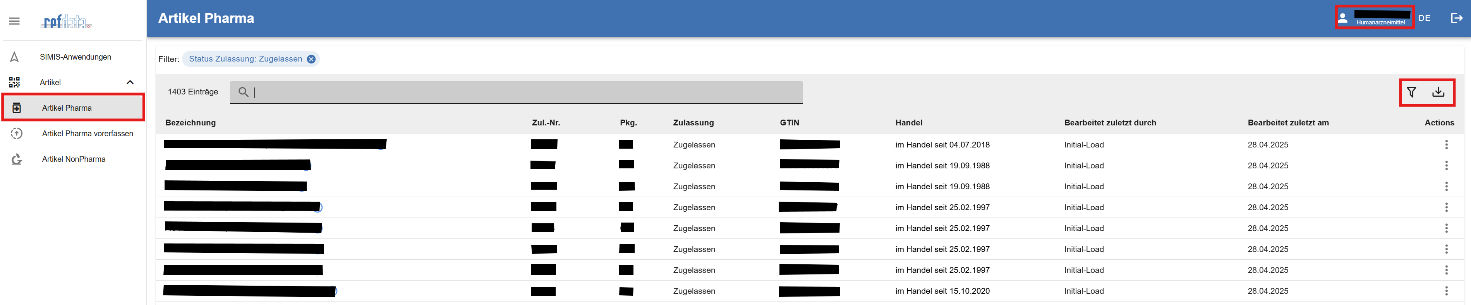
1.1.1 Full-text search on attribute data
- Name (= only on the values in the currently displayed GUI language)
- Authorisation number
- Package code
- GTIN
- Last edited by
1.1.2 Toolbar
- Entries: To the left of the full-text search, the number of articles matching the current table result is displayed. The table result includes those articles that meet the criteria of the full-text search and the set filters.
 Download: Clicking "Download" allows the current table result to be downloaded as a Pharma Article List Export (Excel file).
 Filter: The "Filter" button allows the displayed articles to be specifically restricted – based on the criteria "Trade Status" and "Authorisation Status".
Example use cases:
- Setting the trade status for the first time: Set filter to "no trade" and "authorised"
- Changing the trade status: Set filter to "in trade"
- To check products with trade status but without valid authorisation:
Set filter to "in trade" and "not authorised" → In the table result, the trade status of these products appears in red.

1.1.3 Column display
- Name:
- Without trade status, the name in all languages corresponds to the medicinal product name registered with Swissmedic.
- With trade status, the standardised name in the set GUI language is displayed. Hovering the mouse over the blue
 shows the article name in all 4 languages.
- Auth. No.: 5-digit authorisation number from Swissmedic
- Pack.: 3-digit package code from Swissmedic
- The following fields are only displayed if the article has a trade status:
- GTIN: 13-digit code from the global standardisation organisation GS1.
- Trade (calculated value): see Trade Status Information under point 1.2.2
- Last edited by*: Display of the personal business email address of the person who last worked on this record.
- Last edited on*: Date on which this record was last edited.
- Actions: "Edit"
- Define the trade status of OGD records by standardising the name, assigning a GTIN and setting a "Valid from" or "Valid until" date.
- For records with trade status, all fields can be adjusted if required. As a rule, only the "Valid until" date is adjusted for a record with trade status.
1.2 Pharma Articles, Edit Screen
1.2.1 Views and description
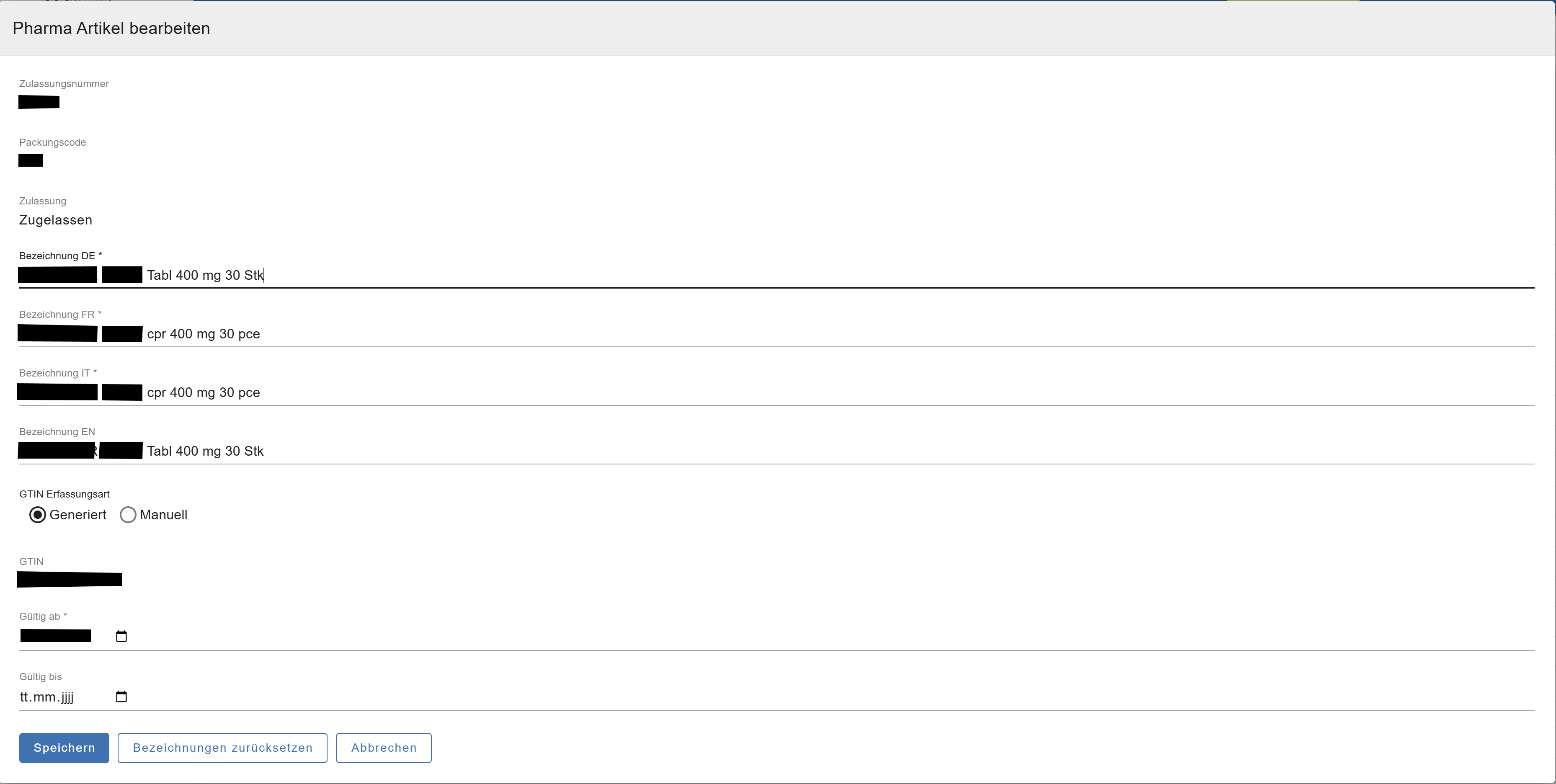
After clicking on the 3 dots in the "Actions" column and selecting the "Edit" menu, the edit screen appears to set the trade status of an article.
1.2.2 Field descriptions
- Information fields (read-only):
- Authorisation number: 5-digit authorisation number from Swissmedic
- Package code: 3-digit package code from Swissmedic
- Authorised: current authorisation status according to OGD data from Swissmedic
- Name*:
- The name of an article is automatically suggested in the languages DE*/FR*/IT*/EN. The EN name is not mandatory, but is recommended because Refdata's websites are offered in four languages.
- The automatically generated article name consists of a maximum of 50 characters and is composed as follows:
- ARTICLE NAME in capital letters
- Strength with unit of measurement
- Abbreviation of the pharmaceutical form
- Pack size
OGD data name: Product 40 mg, gastro-resistant film-coated tablets
SIMIS name: PRODUCT 40 mg f.c.tab 100 pcs
- GTIN* Entry method:
- Generated:
The GTIN is automatically generated by the system.
Prefix 7680 + 5-digit authorisation number + 3-digit package code + check digit
The prefix 7680 is used for 99% of medicines authorised in Switzerland with an indication. - Manual:
The GTIN is entered manually and comes from the company's own number range, licensed by GS1. Error-free entry is ensured by the system using the check digit.
- Generated:
- Trade status information:
- The "Valid from"* date can be in the past, but no earlier than the first authorisation date from Swissmedic, or in the future.
Recommendation: As a rule, the current date is entered or the date from which the article will be available in trade. - The "Valid until" date can be in the past or in the future. For an initial reference, this field remains empty, unless it is an authorisation with a defined validity period.
Recommendation: As a rule, the current date is entered or the date from which the article will no longer be available in trade.
- The "Valid from"* date can be in the past, but no earlier than the first authorisation date from Swissmedic, or in the future.
Effect on the "Trade" field in the SIMIS article list and on the published trade status in the SAI (sai.refdata.ch):
| Field | Trade SIMIS | Meaning |
|---|---|---|
| "Valid from" | in trade since dd.mm.yyyy | Article has been in trade since the entered date |
| "Valid from" | out of trade until dd.mm.yyyy | Article will not be in trade until the entered date |
| "Valid until" | in trade until dd.mm.yyyy | Article will be in trade until the entered date |
| "Valid until" | out of trade since dd.mm.yyyy | Article has been out of trade since the entered date |
- Completing "Edit":
After editing, the process can be completed with "Save" or discarded with "Cancel". After "Save", the article is published in the daily downloadable article refdatabase and the trade status is updated in the SAI.
- When "Editing" an already processed article, in addition to "Save" or "Cancel", the field "Reset names" can be selected. The names in all languages are then automatically regenerated. These must be carefully checked by the user before saving.

2 Pre-register Pharma Articles
The list contains Pharma articles (human and veterinary medicines) whose data has been manually entered by an authorised person of the respective marketing authorisation holder.
Pre-registering an article is particularly useful:
- when Swissmedic has already formally issued the authorisation for the article in writing,
- when the article has not yet been included in the Open Government Data (OGD) on the 1st of the month,
- and when for commercial reasons it is not possible to wait for the next OGD delivery.
As soon as the article appears in the OGD based on its 8-digit authorisation number (consisting of the Swissmedic authorisation number and the package code), the pre-registered article in the system is automatically replaced by the official Swissmedic data and removed from the list of pre-registered articles. The names in the four languages are also regenerated.
The list of pre-registered articles should be empty after the new OGD data is loaded. If this is not the case, it must be ensured:
- that the authorisation number and package code have been entered correctly
- that the authorisation from Swissmedic has actually been formally issued in writing.
Pre-registration of medicines not yet authorised – i.e. articles without an OGD record or without a formal written decision from Swissmedic – is done under the sole responsibility of the marketing authorisation holder. Please note that such pre-registration, e.g. in the case of a first authorisation, may in certain circumstances be classified as inadmissible advertising.
2.1 Pre-register Pharma Articles, Entry Screen
The list of pre-registered Pharma articles should be empty again at the latest after the monthly Swissmedic OGD records are loaded.

2.1.1 Full-text search on attribute data
- Name (= only on the values in the currently displayed GUI language)
- Authorisation number
- Package code
- GTIN
- Last edited by
2.1.2 Toolbar
- Entries: To the left of the full-text search, the number of articles matching the current table result is displayed.
- Download: Clicking "Download" allows the current table result to be downloaded as a Pharma Article List Export (Excel file).
2.1.3 Column display
- Name: Display of the name as entered by the user. Hovering the mouse over the blue shows the article name in all 4 languages.
- Auth. No.: the 5-digit authorisation number from Swissmedic entered by the user.
- Pack.: the 3-digit package code from Swissmedic entered by the user
- GTIN: the 13-digit code from the global standardisation organisation GS1, generated or entered by the user.
- Trade (calculated value): see Trade Status Information under point 2.2.2
- Last edited by: Display of the personal business email address of the person who last worked on this record.
- Last edited on: Date on which this record was last edited.
- Actions: "Edit" or "Delete"
- "Edit": All fields of the pre-registered articles can be adjusted if required.
- "Delete": Pre-registered articles can be deleted if required.
2.2 Pre-register Pharma Articles, Edit Screen
2.2.1 Views and description
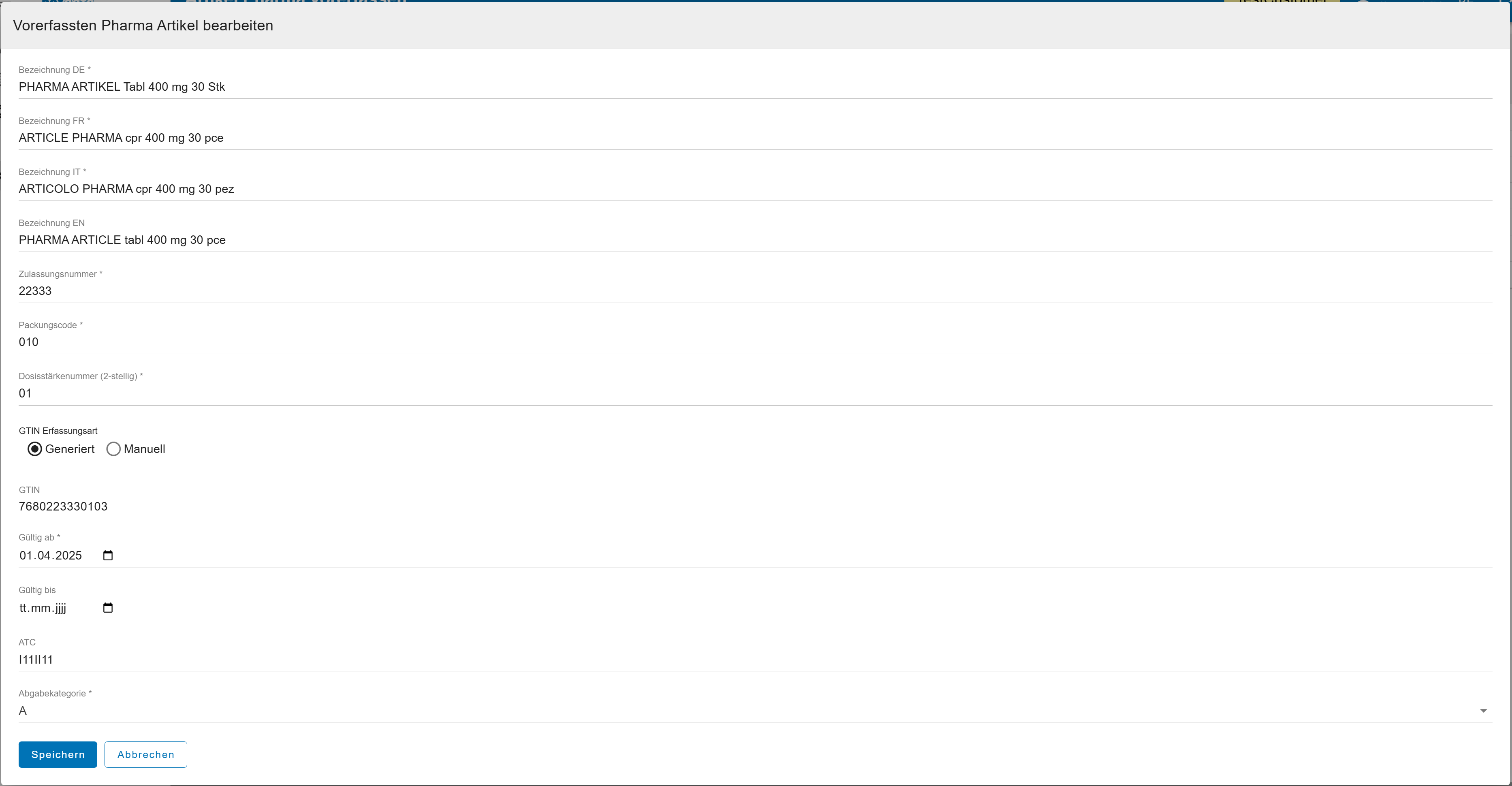
Pre-registration starts with a click on "Pre-register new Pharma article" at the top right. Editing an existing record starts with a click on the 3 dots in the "Actions" column and on "Edit".
2.2.2 Field descriptions
- Name*:
- The name of a pre-registered article is entered by the user in the languages DE/FR/IT/EN. The EN name is not mandatory.
- The entered article name consists of a maximum of 50 characters and is composed as follows:
- ARTICLE NAME in capital letters
- Abbreviation of the pharmaceutical form
- Strength with unit of measurement
- Pack size
PHARMA ARTICLE tab 400 mg 30 pcs
- Authorisation number*: 5-digit authorisation number according to Swissmedic decision
- Package code*: 3-digit package code according to Swissmedic decision
- Strength number*: 2-digit strength number according to Swissmedic decision
- GTIN* Entry method:
- Generated:
The GTIN is automatically generated by the system.
Prefix 7680 + 5-digit authorisation number + 3-digit package code + check digit - Manual:
The GTIN is entered manually and comes from the company's own number range, licensed by GS1.
- Generated:
- ATC*: 7-digit ATC code according to Swissmedic decision. The entered code structure is checked, not the factual accuracy.
- Dispensing category*: Selection of the dispensing category according to Swissmedic decision
- Completing "Edit":
After pre-registration, the process can be completed with "Save" or discarded with "Cancel". After "Save", the pre-registered article is published in the daily downloadable article refdatabase, marked as "Pre-registration".
3 NonPharma Articles
The list contains NonPharma articles transferred from the previous article refdatabase as well as NonPharma articles manually entered by an authorised person of the respective marketing authorisation holder or contractual partner.
It is currently not possible to upload larger quantities of NonPharma articles via an interface in SIMIS.
NonPharma articles can be downloaded in the daily article refdatabase XML file. They cannot currently be retrieved online.
3.1 NonPharma Articles, Entry Screen
Entry of a NonPharma article starts with a click on "New NonPharma article" at the top right.
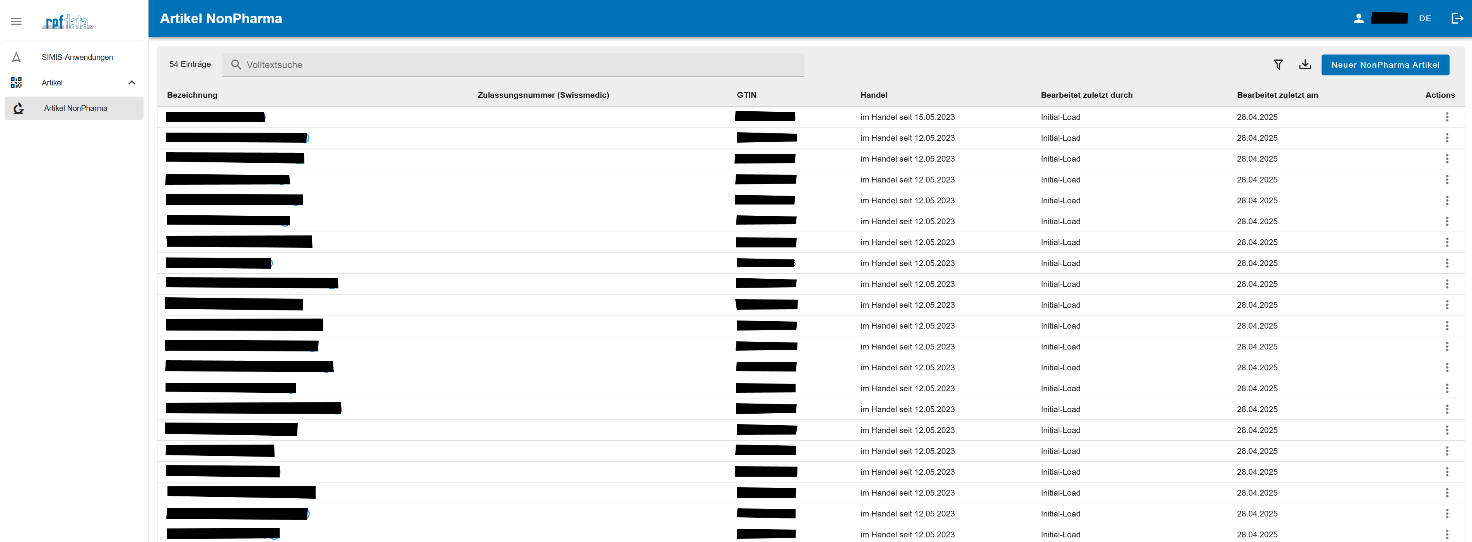
3.1.1 Full-text search on attribute data
- Name (= only on the values in the currently displayed GUI language)
- Authorisation number (only for medicines without indication)
- GTIN
- Last edited by
3.1.2 Toolbar
- Entries: To the left of the full-text search, the number of articles matching the current table result is displayed.
- Filter: The "Filter" button allows articles to be filtered by the criteria "in trade" and "out of trade".
- Download: Clicking "Download" allows the current table result to be downloaded as a Pharma Article List Export (Excel file).
3.1.3 Column display
- Name: Display of the name as entered by the user. Hovering the mouse over the blue shows the article name in all 4 languages.
- Authorisation number (Swissmedic): the 6-digit authorisation number from Swissmedic entered by the user, if it is a medicine without indication.
- GTIN: the 13-digit code from the global standardisation organisation GS1, entered by the user.
- Trade (calculated value): see Trade Status Information under point 3.2.2
- Last edited by: Display of the personal business email address of the person who last worked on this record.
- Last edited on: Date on which this record was last edited.
- Action: "Edit" or "Delete"
3.2 NonPharma Articles, Edit Screen
3.2.1 Views and description
Entry starts with a click on "New NonPharma article" at the top right. Editing an existing record starts with a click on the 3 dots in the "Actions" column and on "Edit" or "Delete".
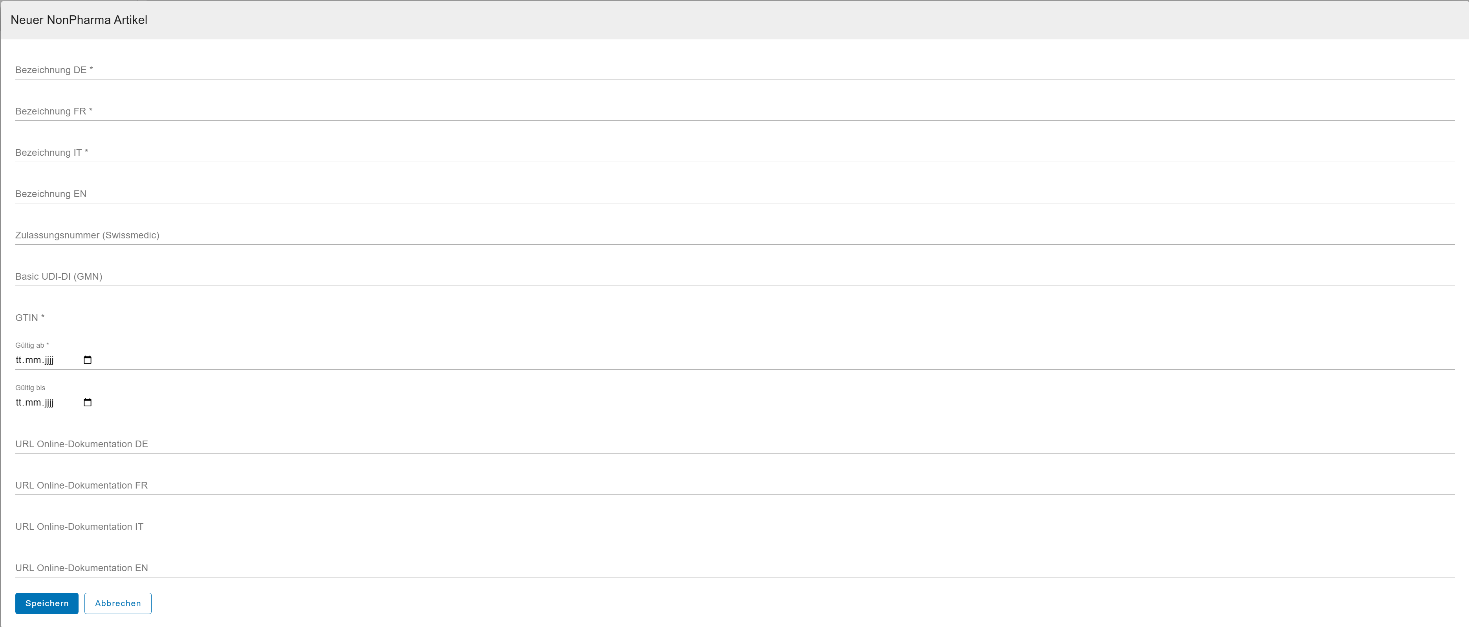
3.2.2 Field descriptions
- Name*:
- The name of a NonPharma article is entered by the user in the languages DE*/FR*/IT*/EN. The EN name is not mandatory.
- The entered article name consists of a maximum of 50 characters.
- Authorisation number: 6-digit authorisation number from Swissmedic. Applies only to medicines without indication.
- Basic UDI-DI (GMN): Only relevant for medical devices subject to the UDI obligation (MepV)
- GTIN*: The GTIN is entered manually and comes from the company's own number range, licensed by GS1. Error-free entry is ensured by the system using the check digit. Automatic generation of the GTIN is not possible for NonPharma articles.
- Trade status information:
- The "Valid from*" date can be in the past or in the future.
Recommendation: As a rule, the current date is entered or the date from which the article will be available in trade. - The "Valid until" date can be in the past or in the future.
Recommendation: As a rule, the current date is entered or the date from which the article will no longer be available in trade.
- The "Valid from*" date can be in the past or in the future.
- URL online documentation: For each article, one link per language can be saved. This can lead to a website with detailed product information or to an online shop.
- Completing "Edit":
After entry, the process can be completed with "Save" or discarded with "Cancel". After "Save", the entered article is published in the daily downloadable article refdatabase, marked as "NonPharma".